In the context of Large Language Models (LLMs) like ChatGPT, temperature is a parameter that controls the randomness and creativity of the generated responses.
Here’s how it works:
- 🔹 Low temperature (e.g., 0 – 0.3)
- The model becomes more deterministic.
- It tends to choose the most probable words.
- Best for tasks needing accuracy and consistency (e.g., summarization, fact-based Q&A).
- 🔹 Medium temperature (e.g., 0.5 – 0.7)
- Balances creativity and reliability.
- Good for brainstorming, explanations, or mixed tasks.
- 🔹 High temperature (e.g., 0.8 – 1.0 or more)
- The model becomes more creative, exploratory, and varied.
- It may generate unusual or imaginative responses.
- Useful for storytelling, poetry, or idea generation—but can introduce inaccuracies.
👉 In short:
- Low temperature → predictable & focused
- High temperature → creative & diverse
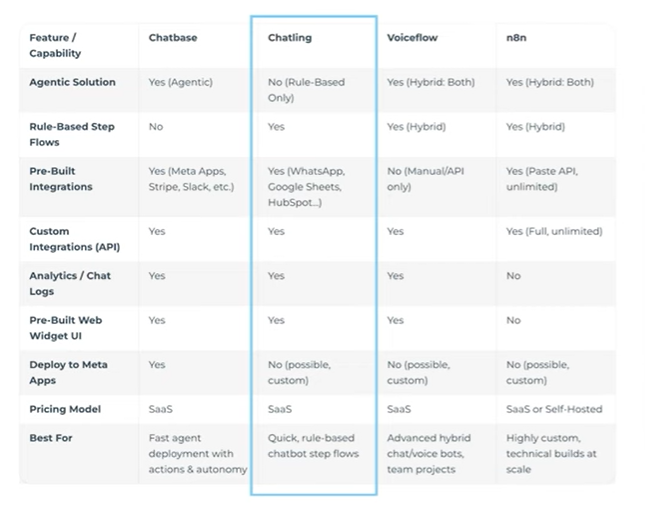
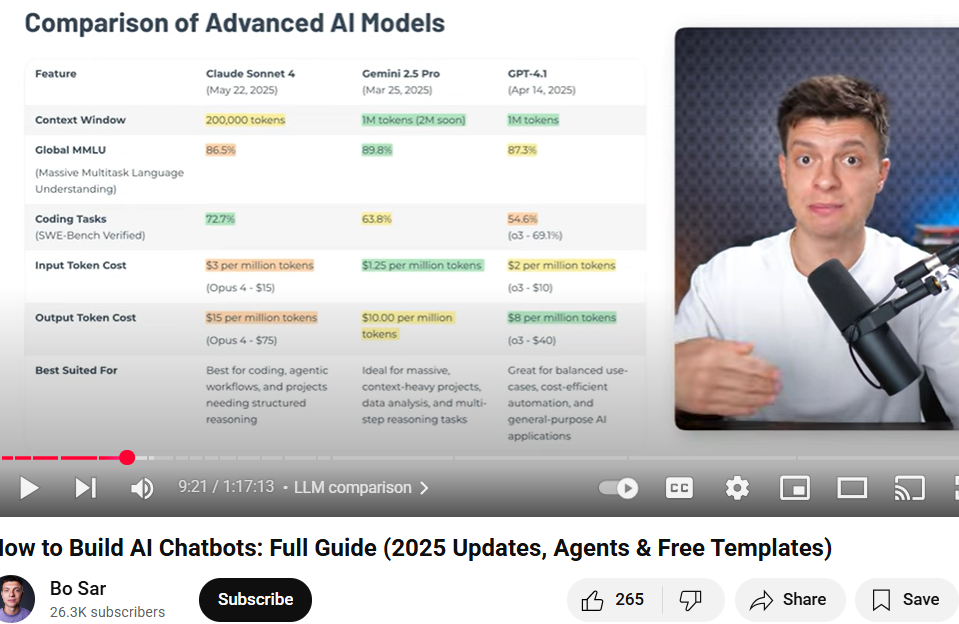
swe-bench: Benchmarking
Usage of Copilot from Office Applications
Copilot in PowerPoint is like having a design-savvy, content-smart assistant built right into your slides. Here’s how you can use it to supercharge your presentations:
🧠 Smart Presentation Creation
- Generate a full deck from a prompt: Just describe what your presentation is about, and Copilot will create slides with titles, content, and visuals.
- Reference documents: Upload Word, Excel, PDF, or TXT files, and Copilot will pull relevant info to build your slides.
- Choose a design template: Copilot can apply your organization’s branding or suggest visually appealing layouts.
✍️ Content Refinement
- Summarize long text: Turn dense paragraphs into concise bullet points or speaker notes.
- Rephrase or rewrite: Ask Copilot to adjust tone, simplify language, or make content more engaging.
🎨 Visual Enhancements
- Suggest design ideas: Copilot recommends layouts, transitions, and SmartArt to improve visual flow.
- Add images and icons: It can automatically insert relevant visuals to support your message.
🗣️ Speaker Support
- Generate talking points: Copilot can create speaker notes or scripts for each slide.
- Adjust tone and style: Tailor your presentation for formal pitches, casual updates, or educational sessions.
🤝 Collaboration & Integration
- Work with Microsoft 365 data: Pull content from Outlook emails, Excel sheets, or Word docs to keep slides accurate and up-to-date.
- Real-time collaboration: Share decks and co-edit with teammates while Copilot helps streamline the process.
To get started, make sure you have a Microsoft 365 subscription and the latest version of PowerPoint. Then look for the Copilot icon in the ribbon—usually near the Design Ideas button.
Want help drafting a presentation right now? Just tell me the topic and tone you’re aiming for!
Usage of Copilot from Excel Application
Copilot in Excel is like having a data analyst by your side—ready to crunch numbers, spot trends, and simplify complex tasks. Here’s how you can use it to make your spreadsheets smarter and your work faster:
📊 Data Analysis & Insights
- Ask questions about your data: Type natural language queries like “What are the top 5 sales regions?” or “Show trends over the last 6 months.”
- Spot patterns and outliers: Copilot can highlight anomalies, summarize trends, and even suggest visualizations like charts or PivotTables.
🧮 Formula Help
- Generate formulas automatically: Just describe what you want, like “Calculate the average revenue per product,” and Copilot will write the formula for you.
- Explain formulas: Not sure what a formula does? Copilot can break it down in plain English.
📥 Data Import & Cleanup
- Import data from other sources: Pull in data from OneDrive, SharePoint, or even the web.
- Clean and format data: Ask Copilot to remove duplicates, fill missing values, or standardize formats.
📈 Visualization & Reporting
- Create charts and graphs: Copilot suggests the best visual format for your data and builds it instantly.
- Generate summaries: Get quick overviews of large datasets, including key metrics and performance indicators.
🔍 Filtering & Sorting
- Custom filters: Ask Copilot to “Show rows where profit is greater than ₹10,000” or “Highlight cells with missing values.”
- Conditional formatting: Automatically color-code cells based on rules you describe.
Usage of Copilot from Word Application
Using Copilot in Microsoft Word is like having a writing partner who never sleeps—ready to help you brainstorm, draft, edit, and polish your documents with just a few prompts. Here’s how you can make the most of it:
✨ What You Can Do with Copilot in Word
- Draft content instantly: Say “Write a professional cover letter for a marketing role” or “Create a summary of this document,” and Copilot will generate it for you.
- Rewrite and refine: Highlight any text and ask Copilot to “Make this more concise,” “Add a persuasive tone,” or “Translate to French.”
- Summarize documents: Copilot can scan long text and give you a bullet-point summary or executive overview.
- Generate tables and lists: Ask it to “Create a comparison table of electric cars” or “List key points from this article.”
- Insert images and formatting: You can request visuals or ask Copilot to format your document for clarity and style.
🚀 How to Access Copilot in Word
- Open Microsoft Word (desktop or web version).
- Look for the Copilot icon on the Home tab of the ribbon.
- Click the icon and type your request in natural language—no need for special commands.
💡 Tip: If you don’t see the Copilot icon, make sure:
- You’re signed in with a Microsoft 365 subscription that includes Copilot (like Personal, Family, Business Standard, or Copilot Pro).
- Your app is updated to the latest version.
- Privacy settings under File > Account > Manage Settings have “Connected experiences” turned on2.
AI workflow Copilot
Login into copilot and say that you would like to build ai workflow using copilot.
🔍 First, what kind of AI workflow are you envisioning?
Here are a few common types to consider:
- Data Analysis Workflow: Ingest data, clean it, run models, and visualize results.
- Machine Learning Pipeline: From data preprocessing to model training, evaluation, and deployment.
- Natural Language Processing (NLP): Text classification, sentiment analysis, summarization, etc.
- Computer Vision Workflow: Image preprocessing, object detection, classification, etc.
- Automation Workflow: AI-powered bots or assistants that handle tasks like customer support, scheduling, or document processing.
List of topics:
- Ollama command line show without net also..
- Ollama service (serve command)
- ollama invocation from a service that is running on localhost with with python script using http (ollama module (or) requests module..)
- Customizing models – Creating a model by customizing an existing model.. (using commands in modelfile (or) using python code)
- What is ollama and diff between ollama and llm
Finetuning a model and using in ollama..
What is Ollama?
Ollama is not a large language model (LLM) itself. Instead, it’s an open-source platform or runtime tool that lets you download, manage, and run various LLMs locally on your own computer—much like Docker does for containers MediumIt’s FOSS.
It’s built to work on macOS, Windows, and Linux, offering a command-line interface (CLI) (and more recently, a Windows GUI) to easily interact with models like Mistral, Llama, Gemma, and others MediumIt’s FOSSWindows CentralOllama.
Ollama vs LLM: What’s the Difference?
| Ollama | LLM (e.g. Llama, Mistral) |
|---|---|
| Platform/runtime tool | The actual language model |
| Manages model download & execution | Performs text generation/comprehension tasks |
| Provides CLI (and GUI on Win11) | Models are executed via Ollama |
| Supports quantization techniques | N/A—quantization handled by Ollama for efficiency |
Key Capabilities of Ollama
- Model Management: You can browse a library of LLMs, pull and run them—all via simple CLI commands like
ollama pull model-name,ollama run, andollama listOllamaMediumLangChain. - Local Execution: Everything runs on your machine—no need for cloud access, which means better privacy, offline functionality, and lower latency MediumHostingerWindows Central.
- Efficiency via Quantization: Ollama uses techniques like 4-bit or 8-bit quantization and underlying engines like
llama.cppto make models run efficiently on modest hardware Medium+1. - New GUI for Windows: Now includes an official Windows 11 GUI, offering a more accessible interface (drag-and-drop files, multimodal input, context length sliders) Windows Central.
- Integration Options: Ollama supports REST APIs and can be plugged into other frameworks (e.g., the llm-ollama plugin) to let other tools (like AnythingLLM or LangChain) call models running via Ollama GitHubAnythingLLM.
- Using Copilot with Excel, Word, PPT…
- Agent creation on Copilot
Ollama command line
# run the model (or) download if it is not already downloaded.
ollama run tinyllama

/bye
ollama list
ollama show <modelname>
# Gives information about the model: architecture; parameters; context length; embedding length; quantization
NLP intro and connecting it into the AI history and fundamentals..
Finetuning an existing LLM using Ollama.
Langchain allows us to access LLMs in python..
What is an AI Workflow?
An AI workflow is a sequence of steps that combines AI models, data processing, and automation tasks to achieve a specific outcome.
It’s like a pipeline — inputs go in, multiple stages process them, and outputs come out.
Example:
Resume Screening Workflow
- Input: Upload resumes.
- Step 1: Extract text from resumes (OCR / parser).
- Step 2: Use an AI model to match resumes to job description.
- Step 3: Rank candidates based on score.
- Step 4: Send shortlisted candidates to recruiter.
Here, the workflow is fixed — the system follows these steps in the same order every time.
What is an AI Agent?
An AI agent is like an autonomous problem-solver that can plan, decide, and adapt steps on the fly to achieve a goal.
It doesn’t just follow a fixed script — it figures out what to do next based on the situation.
Example:
Resume Screening AI Agent
- Understands the recruiter’s instructions (“Find best 5 candidates for Data Scientist role under ₹12 LPA”).
- Chooses the right tools (resume parser, job-matching AI).
- Adjusts the selection criteria if too few candidates match.
- Sends results and proactively suggests other candidates in related roles.
Key Differences: AI Workflow vs AI Agent
| Aspect | AI Workflow | AI Agent |
|---|---|---|
| Nature | Pre-defined sequence of steps. | Dynamic, adaptive decision-making. |
| Flexibility | Low – follows same steps each time. | High – can change approach based on context. |
| Control Flow | Human designs the step-by-step process. | Agent decides the steps needed at runtime. |
| Initiation | Usually triggered by a user or scheduled event. | Can be triggered by environment changes, goals, or proactively. |
| Example | Fixed pipeline for classifying images. | AI assistant that identifies, categorizes, and even requests missing data before classification. |
An agent is something (a program, system, or even a person) that perceives its environment, decides what to do, and takes actions to achieve a goal — usually without needing step-by-step instructions every time.
Simple example:
Think of a virtual travel assistant on your phone.
- Perceives: Reads your request (“Book me a flight to Delhi tomorrow under ₹5,000”).
- Decides: Searches multiple airlines, checks timings, and filters by price.
- Acts: Books the best matching flight and sends you the ticket.
It’s “smart” because it’s not just following a fixed script — it uses input from the environment (your request, airline data, current prices) and makes decisions to reach your goal.
An AI Agent is a computer program that uses artificial intelligence to perceive, decide, and act in order to achieve a goal — often adapting its behavior based on feedback from its environment.
It’s like a self-directed assistant that doesn’t just follow a fixed set of rules, but uses reasoning, learning, or language understanding to figure out what to do next.
Key traits of an AI Agent:
- Perception – Gets input from its environment (e.g., text, images, sensor data, API responses).
- Reasoning & Planning – Decides the best course of action based on its goals.
- Action – Executes tasks (e.g., sending an email, running code, calling APIs, updating a database).
- Adaptation – Learns from results to improve future actions.
Example:
A Customer Support AI Agent for an e-commerce site:
- Perceives: Reads a customer’s complaint about a delayed delivery.
- Decides: Checks order status in the database, compares it to promised delivery time, and determines the cause of delay.
- Acts: Sends an apology, provides the tracking link, and issues a small coupon as compensation.
- Learns: Updates its delivery-delay handling rules if it notices a pattern.
| Feature | Chatbot | AI Agent |
|---|---|---|
| Primary Role | Engage in conversation and provide answers or guidance. | Achieve a goal by perceiving, deciding, and taking actions. |
| Nature | Mostly reactive – responds to user queries. | Proactive – can initiate actions based on triggers or monitoring. |
| Decision-Making | Limited; often follows pre-defined rules or scripts. | Uses reasoning, planning, and sometimes learning to decide next steps. |
| Capabilities | Text or voice conversation within fixed scope. | Can chain multiple actions, use tools, call APIs, search data, and operate systems. |
| Automation Level | Low – mainly guides the user to act. | High – completes tasks end-to-end with minimal user intervention. |
| Adaptability | Rarely adapts unless reprogrammed. | Can adapt or improve from feedback and results. |
| Example | “What’s the weather tomorrow?” → Replies with forecast. | “Plan my weekend trip.” → Finds best travel dates, books tickets, reserves hotel, and sends itinerary. |
https://colah.github.io/posts/2015-08-Understanding-LSTMs/
GEMINI
https://www.eraser.io/ai/bpmn-diagram-generator
- Advanced Text Generation and Understanding:
- Creative Writing: Generate various creative text formats like poems, code, scripts, musical pieces, email, letters, etc.
- Summarization: Condense long articles, documents, emails, or even videos into concise summaries.
- Translation: Translate text between multiple languages.
- Content Creation: Draft blog posts, social media captions, website content, marketing materials, and more.
- Brainstorming: Generate ideas for projects, campaigns, stories, or anything you’re working on.
- Q&A: Answer complex questions by reasoning over multimodal inputs.
- Personalized Responses: Craft tailored responses for emails, customer service interactions, or personal communications.
- Multimodal Capabilities (Understanding and Generating from various inputs):
- Image Understanding: Analyze images, describe their content, identify objects, and provide insights based on visual information.
- Video Understanding: Summarize key points from videos, extract important details, or even generate new videos from descriptions.
- Audio Understanding: Transcribe audio, summarize spoken content, and translate audio (e.g., from voice notes or interviews).
- Combining Modalities: Reason across text, images, audio, and video simultaneously to understand nuanced information and provide comprehensive answers.
- Powerful Reasoning and Problem-Solving:
- Complex Problem Solving: Tackle difficult problems in various domains like math, science (STEM), and logic.
- Data Analysis: Analyze large datasets, identify trends, and extract key insights from documents, spreadsheets, or even customer feedback.
- Research: Conduct “Deep Research” by Browse and analyzing hundreds of websites in real-time to generate comprehensive research reports on almost any topic.
- Logical Reasoning: Process logical questions more accurately, making it highly reliable for research, technical analysis, and decision-making.
- Enhanced Coding and Development:
- Code Generation: Write high-quality code in various programming languages (Python, Java, C++, Go, etc.).
- Code Debugging: Identify and help fix errors in your code.
- Code Optimization: Suggest improvements for code efficiency and performance.
- Code Explanation: Understand and explain how different parts of a codebase work.
- Unit Test Generation: Automate the creation of unit tests for your code.
- Analyze Large Codebases: Process and understand large code repositories (up to 30,000 lines of code).
- Integration with Google Workspace (Gmail, Docs, etc.):
- Gmail Integration: Draft emails, summarize email threads, and find specific information within your inbox.
- Docs Integration: Get help drafting documents, proofreading, and refining your writing.
- Other Workspace Apps: Assist with tasks in Google Calendar, Maps, YouTube, and Photos, allowing you to find what you need without switching apps.
- Video Generation (Vids): Turn your words into videos or animate images you create.
- Customization and Personalization:
- Gems (Custom AI Experts): Create customized versions of Gemini tailored to specific tasks and preferences. You can define how your “Gem” should respond, acting as a career coach, coding helper, study partner, or any specialized expert.
- Interactive and Conversational AI:
- Gemini Live: Engage in natural, back-and-forth conversations using your voice. You can brainstorm ideas, practice interview questions, or discuss files and photos by talking it through with Gemini.
- Context Handling: Maintain context over long conversations, remembering earlier parts of the discussion to provide more accurate and relevant responses.
- Productivity and Learning Tools:
- Study Partner: Create study plans, topic summaries, and quizzes. Upload notes or slides to generate study guides or practice tests.
- Task Management: Help set alarms, control music, and make calls hands-free.
- Business Applications: Act as a research analyst, sales associate (crafting proposals), productivity partner (email drafting, summarizing), creative assistant (presentations, image generation), or meeting note-taker.
- Advanced Technical Features (for developers and power users):
- Long Context Window: Process and analyze vast amounts of information (up to 1 million tokens, equivalent to around 1,500 pages of text or 30,000 lines of code) in a single prompt.
- Function Calling: Produce structured output from unstructured data and interact with external tools or APIs.
- Code Execution: Execute code snippets within its environment to verify results or perform computations.
- Structured Outputs (JSON mode): Generate responses in structured formats like JSON, making it easier to integrate with other applications.
- Thinking Capabilities: Gemini Pro can “reason through its thoughts” before responding, leading to enhanced performance and improved accuracy, especially on complex problems.
This comprehensive list highlights the breadth of capabilities you gain with Gemini Pro, making it a powerful tool for both everyday tasks and complex professional projects.
- Text input and Text output
Prompt: Generate an image of a class room with students

- Text input and image output
- Text input and video output
Uploaded the SCRUM Primer note (https://www.scruminc.com/wp-content/uploads/2014/05/scrumprimer20.pdf) and asked Notebook LM to create a video overview. The following is the output it created.
- PDF file input and Mindmap output
- Uploaded the SCRUM Primer note (https://www.scruminc.com/wp-content/uploads/2014/05/scrumprimer20.pdf) and asked Notebook LM to create a video overview. The following is the output it created.
- Text input and audio output
- Image input and text output
Input Image:
Uploaded below image and prompted “Go through the uploaded photo and describe the scene in 5 bullets”

Response from Gemini
Here’s the scene described in 5 bullets:
- A passenger train, primarily red and grey with yellow stripes, is parked at a railway station platform.
- The platform has distinctive yellow and brown checkered tiling near the tracks, transitioning to a lighter green/grey surface further back.
- A prominent digital clock on a pillar displays the time as 16:47.
- A young person with a yellow backpack is seated on a bench on the platform, facing away from the train.
- A “TOI” watermark is visible in the bottom left corner of the image.
- Image input and audio output
- Video input and text output
- Video input and audio output
- Audio input and text output
- Examples: PixelRNN / PixelCNN (images); GPT family (text)
Video overview: Pixel Recurrent Neural Networks (PixelRNN) and PixelCNN
Thank you for your mail. I have tried set the foundation for the rest of the domain specific sessions to be delivered by you all.
What is covered so far? (8 Sessions)
- Introduction to Generative AI & Prompt Engineering (2 Sessions)
- Technologies enabling this;
- Evolution of AI (intro to early systems, expert systems, ML à NN à DL à Transformers à Gen models à LLM and Applications;).
- GenAI Application Usecases in Business, Tools and Techniques.
- Hands-on activities/exercises in Prompt Engineering including multimodal prompts and responses (2 Sessions)
- Introduction to Accessing LLMs through Gemini APIs using Python; Extending that to understand RAG and build a simple RAG usecase in Python (2 Sessions)
- Two Hands-on activities with submissions (Building my own resume; A HR problem scenario (one for each student) which required multiple levels of prompting and refinement to address). (2 Sessions).
What is yet to be covered? (4 Sessions)
- Introduction to AI Workflows, AI Agents with hands-on activities on n8n and copilot.
- AI Applications using Claude
- On premises models/applications:
- Ollama installation and experimentation in command line
- Ollama service on localhost with http requests using python
- Creating a model and using it in Ollama
- Finetuning a model and using it in Ollama (only explanation. Activity to be attempted on high-end laptops considering time taken).
- Introduction to few concepts.
 Dr. Selvaraj Vadivelu